When should I start taking MCAT practice tests?
You should integrate practice tests strategically throughout your preparation. Start relatively early with at least one full-length diagnostic test to get a comprehensive sense of the knowledge, reasoning, and stamina required for this full-day exam. This initial test helps you identify your baseline and focus your content review.
As a general guide for solid preparation:
- Approximately 1/3 of your time should be dedicated to a thorough content review.
- Another 1/3 should be spent on targeted practice questions to solidify your understanding of concepts.
- The final 1/3, especially towards the end of your preparation, should involve completing multiple full-length MCAT practice tests under timed conditions, followed by a careful review of all answers and explanations. Take very brief notes during your review sessions, which can be revisited several times each week to reinforce learning.
A summary of the process:
How many MCAT practice exams should I take?
The key to effective practice is quality over sheer quantity. While taking more practice exams can be beneficial, the most impactful practice involves thorough review and integration of lessons learned. For most students aiming for a strong score, a range of 8 to 12 effective, full-length MCAT practice tests (including official AAMC exams) provides comprehensive exposure and stamina building.
To maximize the benefit of each practice test, dedicate ample time for thorough review of answers and explanations over 1-2 days per exam. This crucial step is where the deepest learning and score improvement occur.
Focus on making each practice test count: review all answers and explanations, including those you got correct but were unsure about. Taking brief, effective notes from your MCAT practice test experience and reviewing those notes several times per week significantly builds knowledge, reasoning, and confidence. Choose the number of practice exams according to your individual needs, budget, and schedule.
For comprehensive preparation, Gold Standard offers eight practice exams (including one free exam), with our home study package providing a total of 12. These exams are meticulously designed to simulate the actual exam. Many students with high official scores strategically combine our robust practice tests with the official AAMC materials (including 7 exams) for a diverse and effective preparation, often utilizing a total of 8-12 full-length exams for optimal results.
Is 6 or 7 practice tests enough for the MCAT?
While starting with 6 or 7 MCAT practice tests (including the essential AAMC exams) can certainly be a beneficial and solid foundation for your MCAT preparation, whether it's truly "enough" often depends on your individual study approach, learning style, and target score. For many students aiming for top scores or those needing extensive practice, a higher number of exams is typically recommended.
Consider these factors when determining your ideal number of practice tests:
Diverse Materials: Use various resources (questions, flashcards, reviews) for thorough coverage.
Diagnostic Test: Begin with a diagnostic test to identify strengths and weaknesses.
Progress Tracking: Regularly assess progress; if progressing well after six tests, additional ones may not be necessary.
Realistic Practice: Simulate real exam conditions for better adaptation.
Target Score: Your desired score determines extra practice requirements.
Flexibility: Stay adaptable and explore more resources if needed.
Review Questions: Thoroughly analyze missed questions.
For comprehensive preparation, Gold Standard offers eight practice exams, with our home study package providing a total of 12. Of course, the AAMC provides 7 scored exams.
Which is the best MCAT practice test?
The official AAMC scored full-length tests are unequivocally the best because they include actual questions from real past MCAT exams, providing the most authentic representation of the test you'll take. Every serious student should complete all available AAMC practice exams.
However, a comprehensive preparation requires more than just the official tests. This is where high-quality, simulated exams become essential for building stamina, honing test-taking strategies, and identifying areas for improvement without exhausting precious AAMC resources too early.
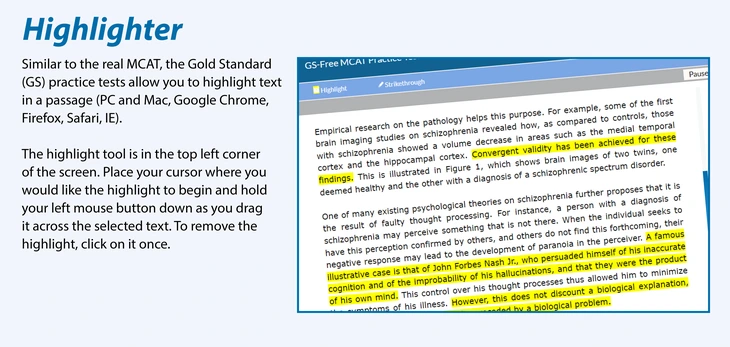
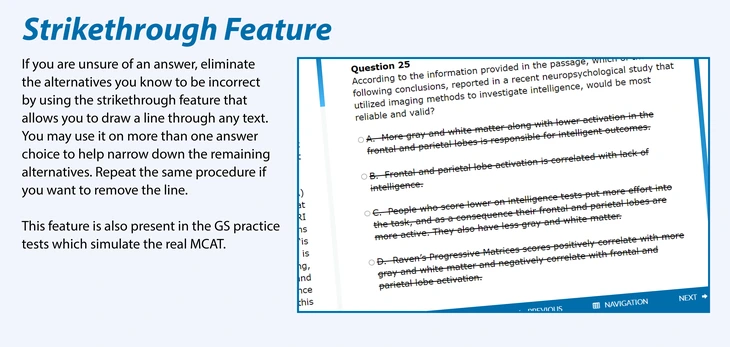
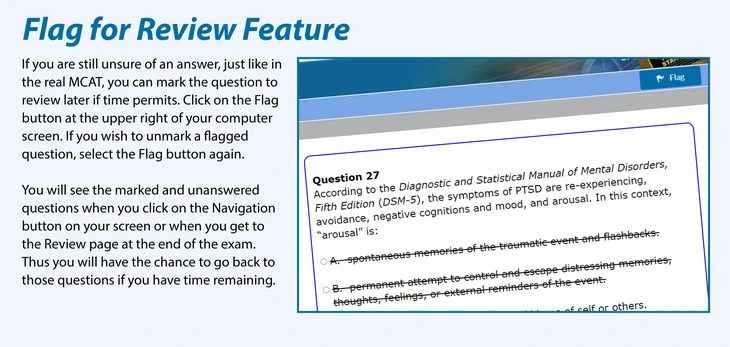
Among additional, simulated exams, Gold Standard MCAT practice tests are widely recognized as a top choice for students seeking realistic, high-yield preparation. We meticulously design our mock tests to provide:
- Realistic Practice: Experience accurate simulations of the real exam, building vital exam-day stamina.
- In-Depth Review: Our detailed text and video explanations ensure you truly understand every concept.
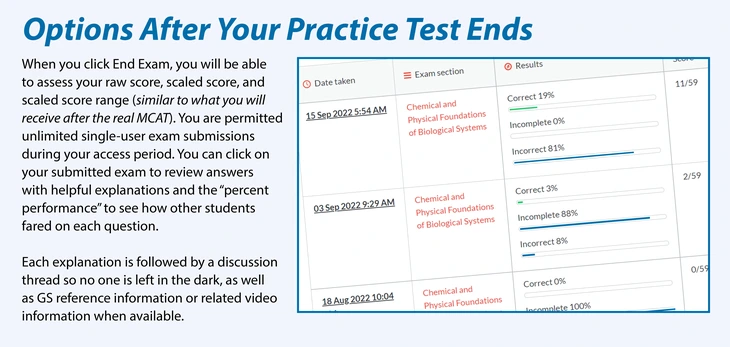
- Instant Progress Tracking: Get immediate scaled scores to pinpoint strengths and weaknesses fast.
- Affordable Excellence: High-quality preparation at a price that fits your budget.
Ultimately, the "best" practice test strategy often involves combining the official AAMC materials with a robust set of high-quality, simulated exams like those from Gold Standard. This approach ensures you get both authentic exposure and ample practice to optimize your score.
Which MCAT practice test is the hardest?
Among the most realistic MCAT practice tests, the AAMC scored exams, AAMC Practice Exam 4 is considered the hardest (most difficult), especially in the CARS and B/B sections. It is also currently the newest. However, please keep in mind that many students consider that the curve for Practice Exam 4 may be more generous than the other tests, meaning that you can get more questions wrong and still get a higher score.
Generally, the newer AAMC tests (3 and 4) may be slightly harder than the older ones (1 and 2), as they reflect the changes and updates in the exam format and content over time.
Determining the hardest MCAT practice test among commercial mock tests can be subjective, varying based on individual strengths, weaknesses, and familiarity with the content. Some students, for instance, find the Gold Standard MCAT mock tests to be quite challenging. These tests closely emulate the official exam's difficulty and format, serving as a valuable assessment resource. Remember that the perceived difficulty of a practice test may change as you progress in your preparation. Tests that seemed hard initially might become more manageable as you enhance your knowledge and test-taking strategies. Taking a variety of practice tests is essential for well-rounded preparation and adaptation to the complexity of the questions.
How to effectively review an MCAT practice test
Effective practice test review requires time, discipline and focus. Because it is a full-day exam, a few minutes or hours of review would be considered cursory. The equivalent of one or two full days for review would be ideal.
Discipline: Many students skip reviewing questions if they feel "I knew that one," regardless of whether they got it right. This can be a mistake. Reviewing explanations, even if you got it right, can provide insights into similar questions on the real exam.
Our Gold Standard practice exams provide comprehensive, detailed explanations for every question, not just the correct answer. These explanations are meticulously crafted to deepen your understanding, clarify complex concepts, and reveal the reasoning process, offering invaluable insights that directly apply to similar questions on the actual exam.
Focus and Concentration: The entire review requires focus and concentration as if re-taking the exam.
What type of passage was it? Did you really need to understand the entire passage in order to answer the questions correctly? Was the question discrete, pseudo-discrete, or a truly passage-based question? What insights can you now have while time pressure has been removed?
Tracking Progress: Compare total scores to previous practice exam scores and section scores to previous section scores. However, “progress” is like the stock market: your score may go up and down relative to a few full-length MCAT practice tests but, over time, your scores should improve as long as you continue creating your Gold Notes and that you continue to study from those notes several times per week as the real exam approaches.
Mock Tests: While each practice test offers a crucial simulation of the real exam experience, utilizing multiple mock tests (including those from Gold Standard and the official AAMC materials) and consistently applying effective review strategies will ensure you build the comprehensive skills and adaptability needed for exam day. This extensive practice prepares you thoroughly for the nuances of the real exam.
By diligently applying these review strategies with your Gold Standard practice exams, you'll be well on your way to exam success. Find the perfect package for your preparation here: MCAT practice tests.
Are there free MCAT practice tests?
Gold Standard has a free MCAT Practice Test with an online interface that replicates the real exam. The mock test includes free helpful explanations and instant scores for all 4 sections of the exam (thus it can be used as a 'prognostic test' to guide your study priorities). We also have 15 free MCAT sample questions with answers, helpful explanations, no registration is required.
Khan Academy has practice questions but the content is not identical to a real exam. We integrate them into our program in order to help students improve their study efficiency with additional, helpful content. We never count those practice questions into the total number of questions for any programs we offer.